How to Use Notion AI — 5 Ways to Delegate Project Management to AI
If you are a beginner or intermediate user
interested in project management,
Notion AI is a productivity tool you must know.
Notion AI leverages AI automation
to significantly simplify complex tasks
and schedule management.
In this article, we will carefully explore
everything from installing Notion AI
to its core functions and practical usage scenarios,
step by step.
What is Notion AI and Why Should You Care?
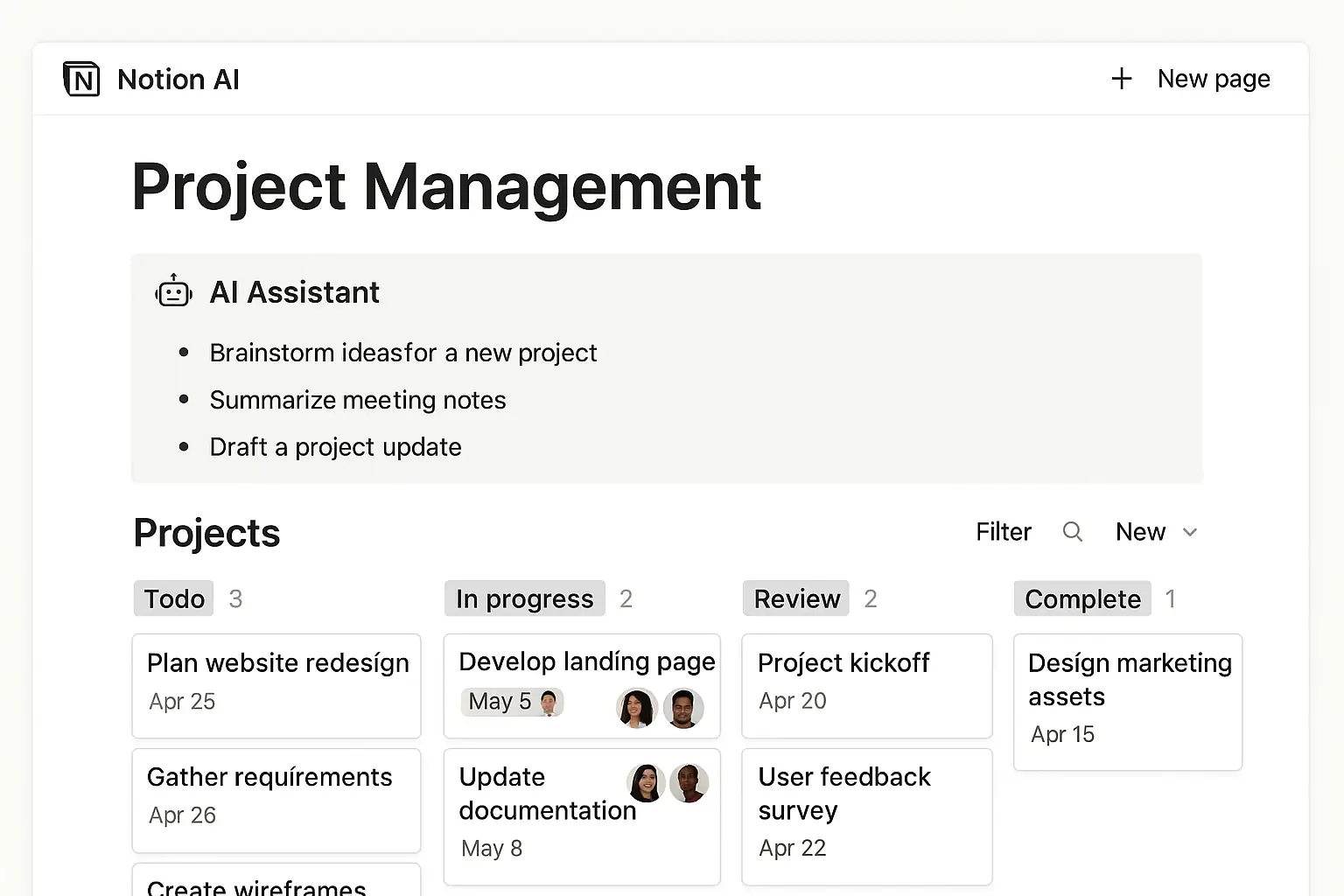
Notion AI is a service that integrates AI capabilities
into the existing project management tool Notion,
specializing in task automation
and document assistance.
Amid rising AI trends
and increased use of artificial intelligence,
Notion AI significantly expands its role
as a productivity tool for users.
This tool offers an accessible UI
and features optimized for team collaboration,
making it an ideal choice
in the era of digital transformation.
Installation and Sign-Up Process for Notion AI
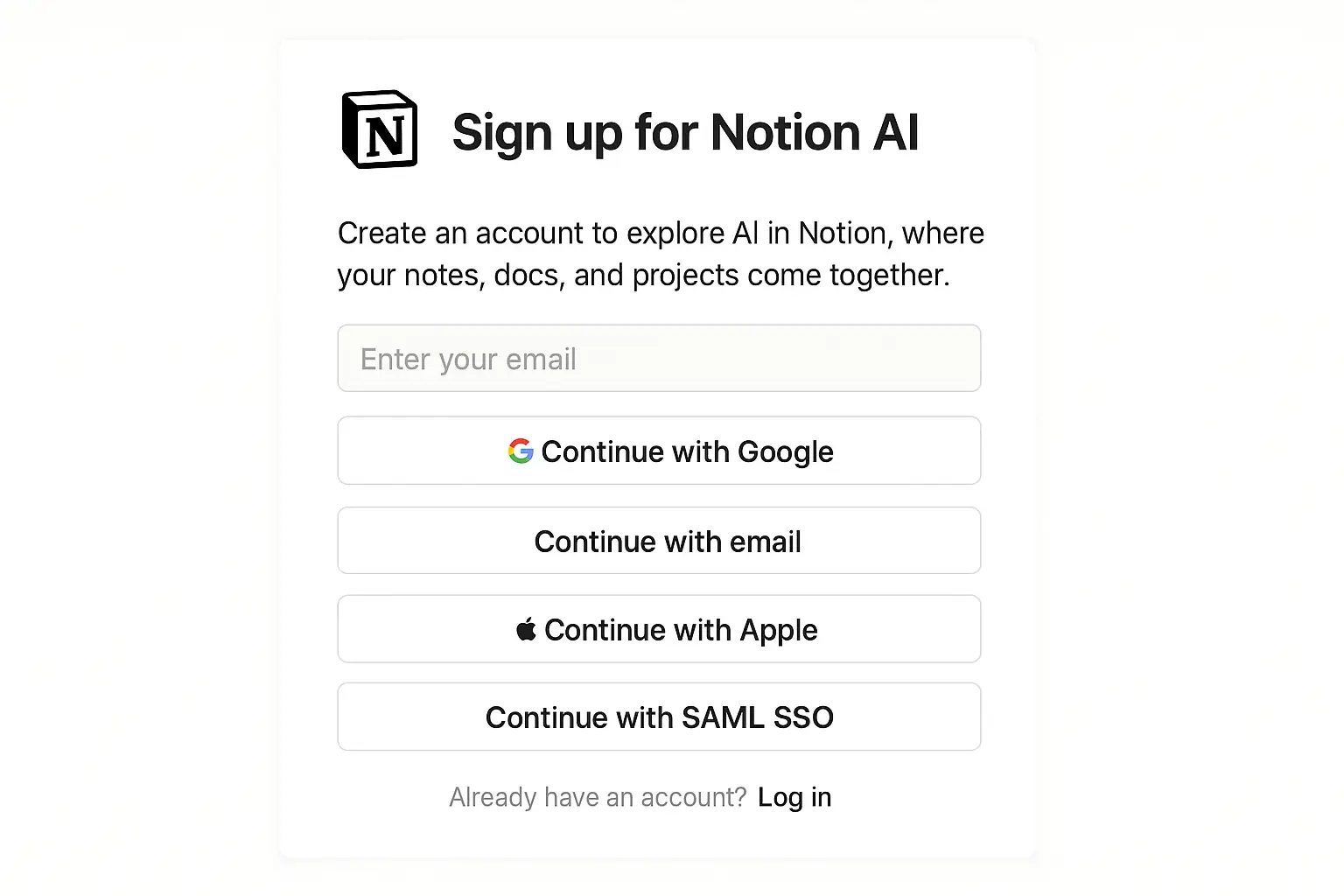
To start with Notion AI,
you need a basic Notion account,
and the AI feature activation process is as follows:
Enter your email and set a password,
or sign up easily via Google account.
Using AI-enabled templates
lets you experience task automation immediately.
The overall sign-up process is intuitive
and can be completed within 10 minutes.
Core Features of Notion AI and Practical Examples
We introduce four core features of Notion AI in detail,
along with practical usage examples.
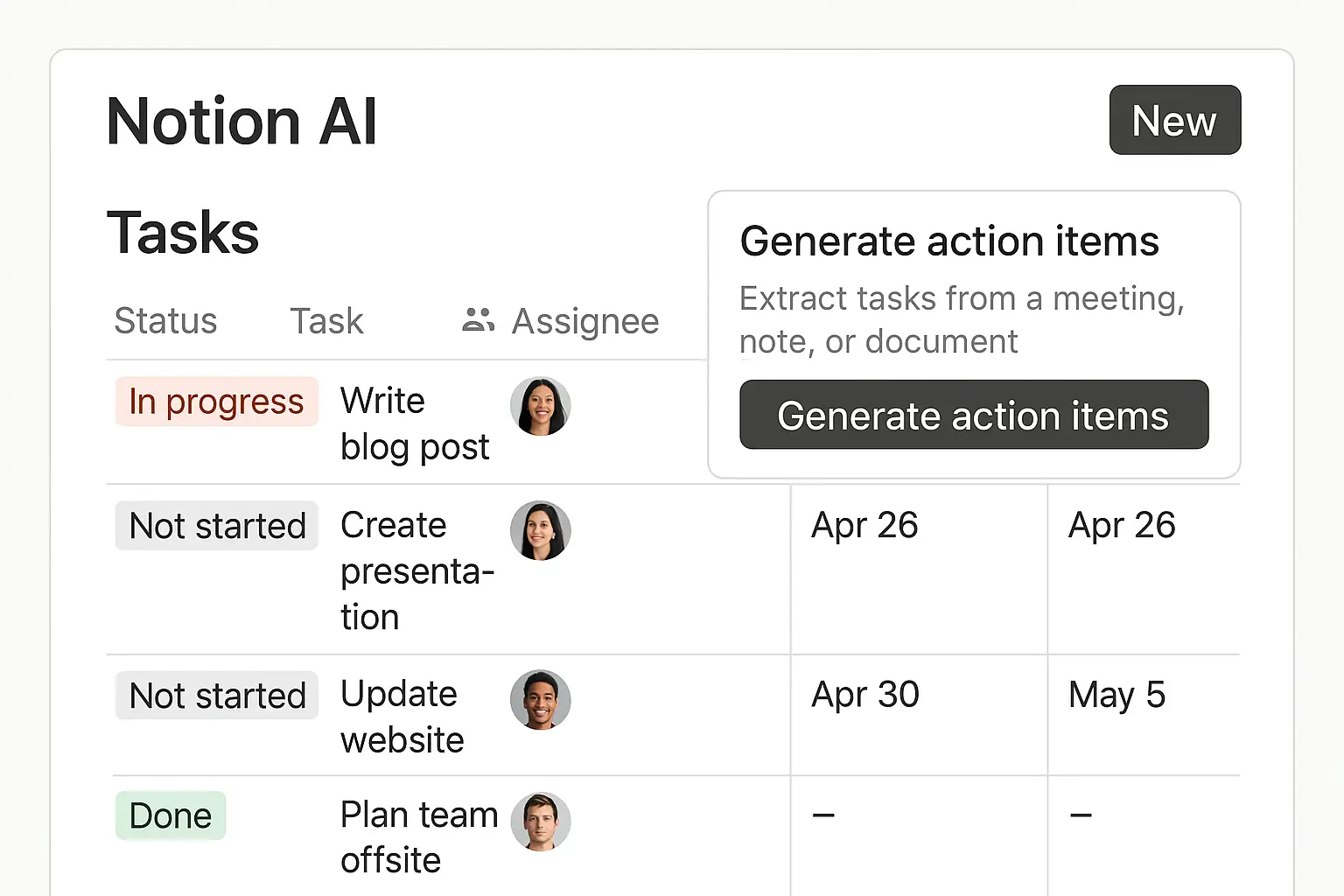
1. Task List Auto-Generation
When you input project goals,
Notion AI automatically generates a related task list.
2. Schedule Management and Alerts
Integrated with the calendar,
AI organizes deadlines and important schedules
automatically and sends reminders.
3. Document Creation and Editing Assistance
When writing reports or meeting minutes,
AI helps with summarization,
sentence improvement,
and idea suggestions.
4. Automated Team Feedback Collection
AI automatically collects and analyzes
team members' progress and opinions,
displaying everything at a glance.
Real-Life Usage Scenario with Notion AI
I share my direct experience
managing a team project using Notion AI.
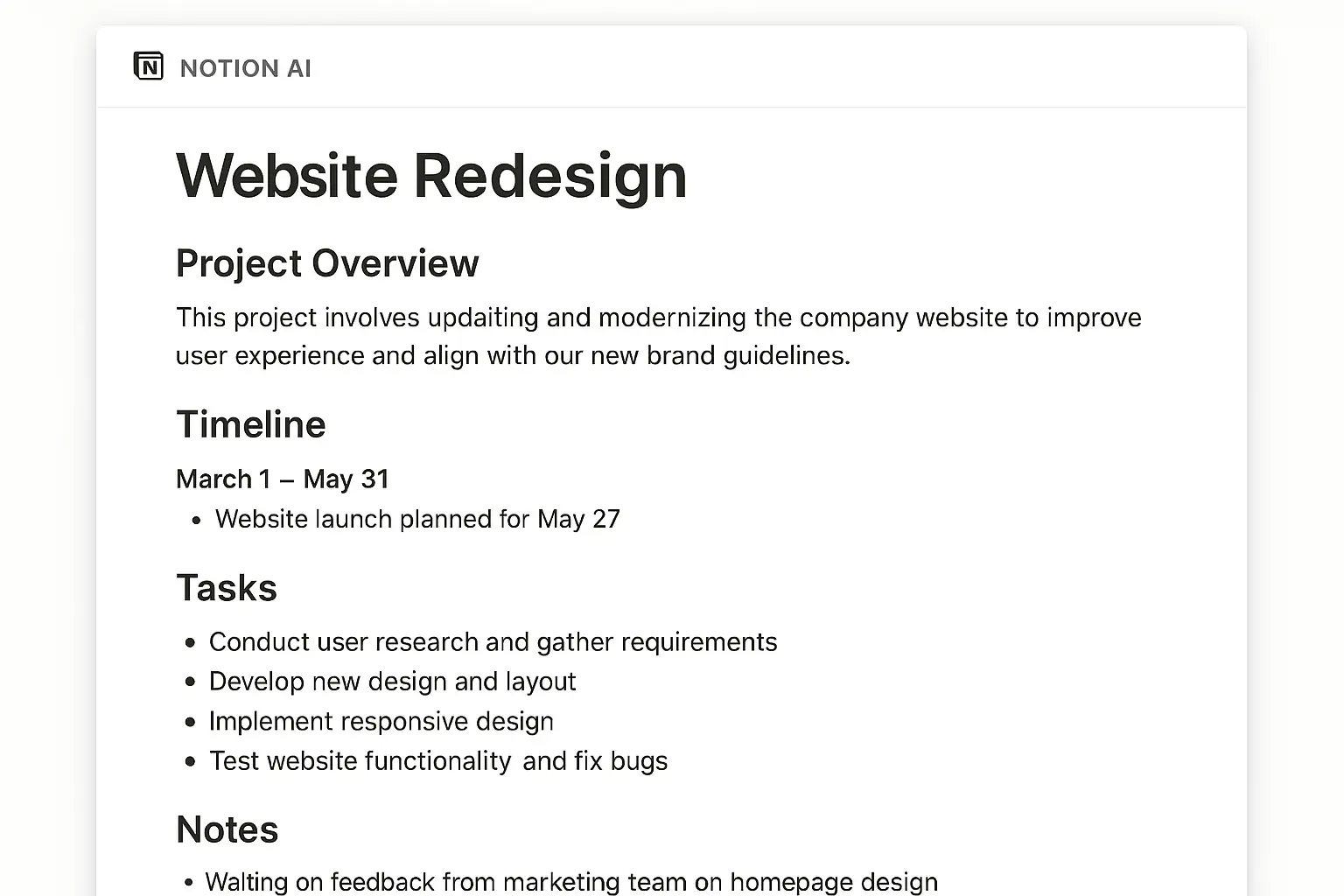
1. Team Project Planning
When I input team goals,
AI categorizes tasks and schedules as follows:
2. Task Distribution and Progress Tracking
I monitored each member's task status in real-time
on the Notion AI dashboard,
with AI automatically generating periodic alerts
and progress reports.
3. Feedback Collection and Analysis
After meetings, AI summarized team opinions and shared them,
saving considerable time.
During this process,
repetitive tasks decreased
and time spent on document creation
was reduced by over 40%.
If you are considering similar AI automation projects,
referring to
can be helpful.
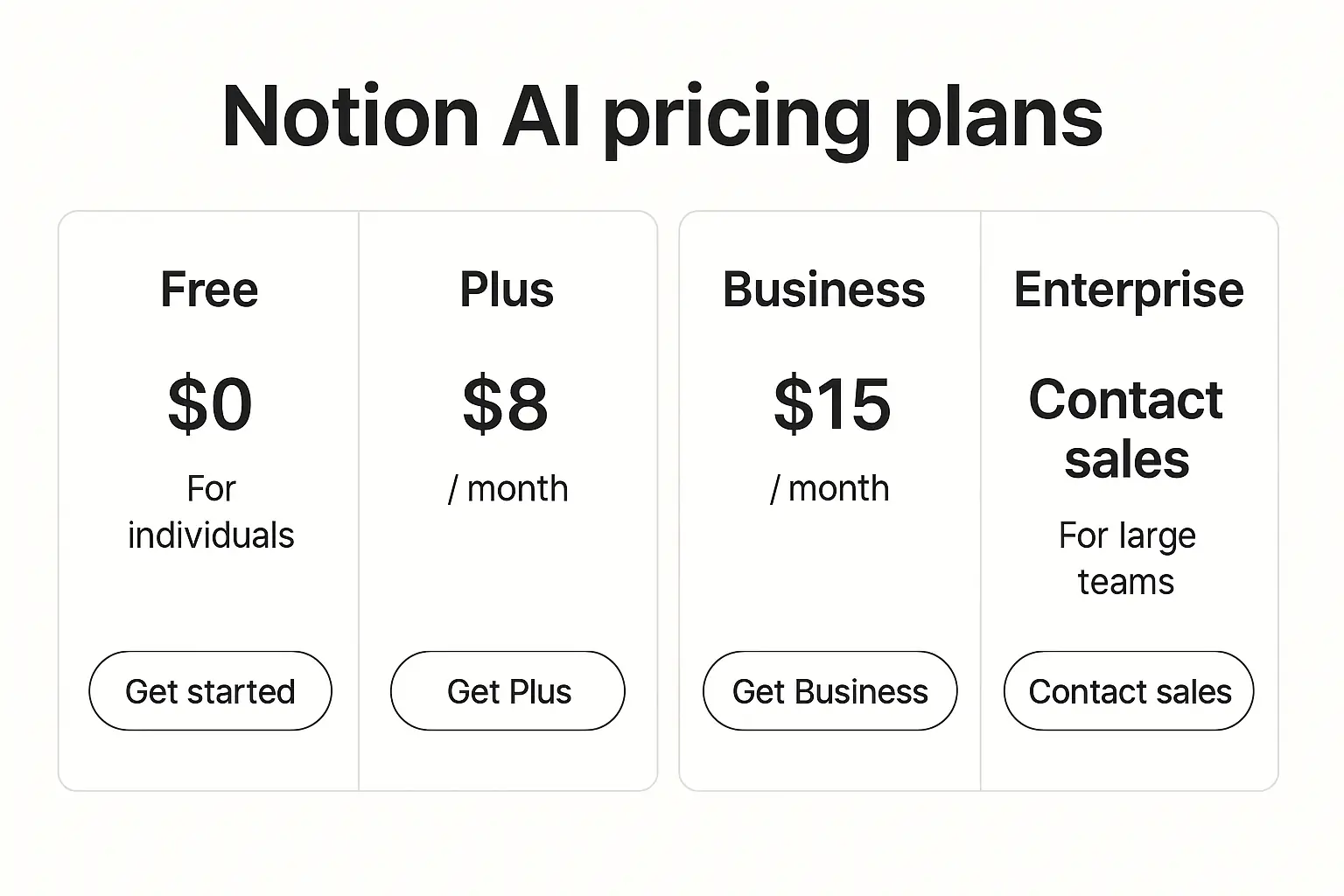
Notion AI Pricing Policy
Notion AI is divided into free and paid plans,
each with the following features:
| Plan | Key Features | Free Limit | Monthly Cost |
|------|--------------|------------|--------------|
| Free | Basic AI (task list, summaries) | 1,000 AI words/month | Free |
| Personal Paid | Unlimited AI, advanced editing, priority support | Unlimited | $10 |
| Team Plan | Team collaboration, custom AI workflows, admin | Unlimited | $20+ per user |
You can experience basic AI automation sufficiently
with the free version,
but paid plans are recommended for team use.
Honest Review: Pros and Cons of Notion AI
Pros
Cons
In actual use, AI sometimes generated task lists
that were too large or too small,
requiring user customization.
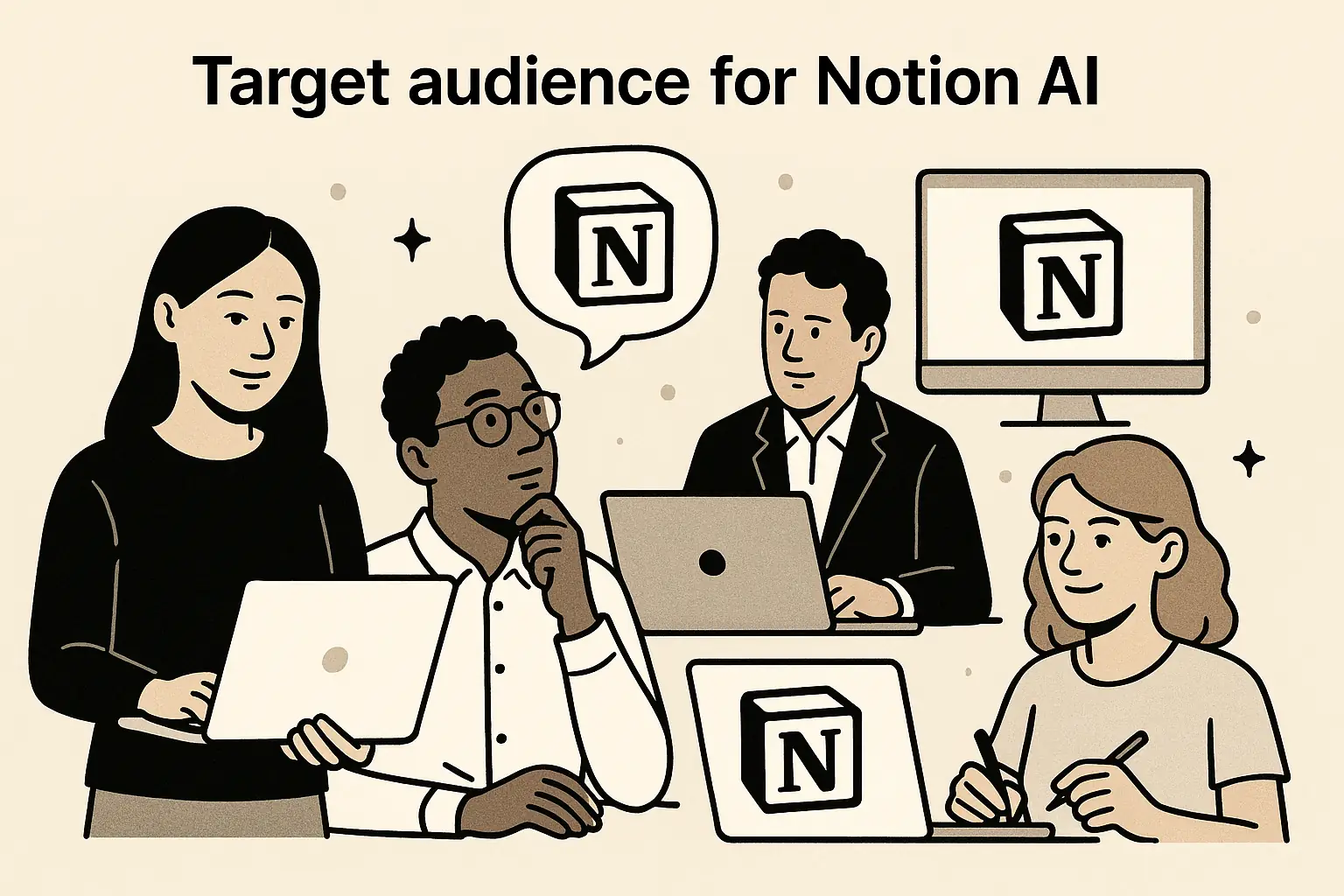
Recommended Users for Notion AI
Notion AI is particularly useful for the following users:
Especially, Notion AI is the best choice
for current Notion users
looking to maximize work efficiency
by adding AI automation features.
Make your project management more efficient with Notion AI.
You can receive more productivity tips
and AI usage guides
by subscribing to the newsletter.
I hope this article provides practical help
to those considering adopting Notion AI.
Feel free to reach out anytime
with questions or consultation requests.
References
Services by Botonglee