Before You Put AI Try-On Photos on a Product Page
AI try-on photos have become a practical option for online clothing shops. Upload one photo of a garment and about half a minute later you have a model wearing it. If you list new styles every week, it is hard not to be tempted.
There is one step that matters as much as making the images: putting each photo side by side with the real garment before it goes live. An AI try-on photo is not your garment cut out and pasted onto a model. It is a new picture of a person wearing something that looks like your garment, drawn from scratch. Most of the time it comes out close. But a button, a letter in a logo or a couple of centimeters of hem can drift, and when the photo doesn't match the product, the seller is the one who pays for it.
This post is not about how to make AI try-on photos. It is about what to check after you make them and before you publish them, and it works the same whichever tool you use. If you want the how-to, the WEAROOM guide walks through it step by step, and three ways to get product photos for a small brand covers when AI images make sense and when a real shoot is better.
A photo that doesn't match can stretch the return window to three months
Take Korea as an example, since that is where we sell. A buyer who simply changes their mind can usually return clothing within 7 days of receiving it, and pays the return shipping.
A product that doesn't match its listing is a different case. Korea's E-Commerce Consumer Protection Act lets the buyer return it within three months of receiving it, or within 30 days of finding out (or when they could have found out) that it doesn't match, and it puts the return shipping cost on the seller (Article 17(3) and Article 18(10)).
Your product page photo is part of that listing. If the AI photo shows one more button than the real shirt has, or a hem that covers the hips when the real one stops at the waist, the buyer can say the item isn't what was shown. A 7-day return becomes a three-month return, and the shipping both ways is yours.
If you sell somewhere else, look up how your marketplace and local consumer rules handle "not as described" returns. Many treat them separately from change-of-mind returns, so a mismatched photo can cost more than a normal return.
The AI tool won't carry this for you either. WEAROOM's terms say the company "does not guarantee the results of AI-generated content" and that responsibility for using the content you generate lies with you. If you use another tool, find the same lines in its terms. Either way, the last check is the seller's.
Six things to compare against the real garment
What to check is almost the same list you would write on a garment work order, the spec sheet you send a factory. The things you tell the factory to make exactly this way are the things the photo has to show exactly this way. If you have never written one, how to write a garment work order shows what goes on it.
1. Color and color blocking
Look past the main fabric color. If the garment has contrast stitching, colored buttons, a lining, or ribbing at the cuffs and hem in a different shade, make sure each of those is still there in the photo.
Compare on one screen, with the real garment photo next to the AI image. Looking at them separately, it is easy to mistake a difference in screen brightness for a difference in color. Close pairs like navy and black, ivory and white, or heather gray and flat gray only separate when they sit side by side.
2. Length and fit
Check where the hem lands on the body, where the sleeve ends on the wrist, and whether the shoulder seam sits at the shoulder point or drops below it. Comparing against the real garment on a person or a mannequin is the most reliable way.
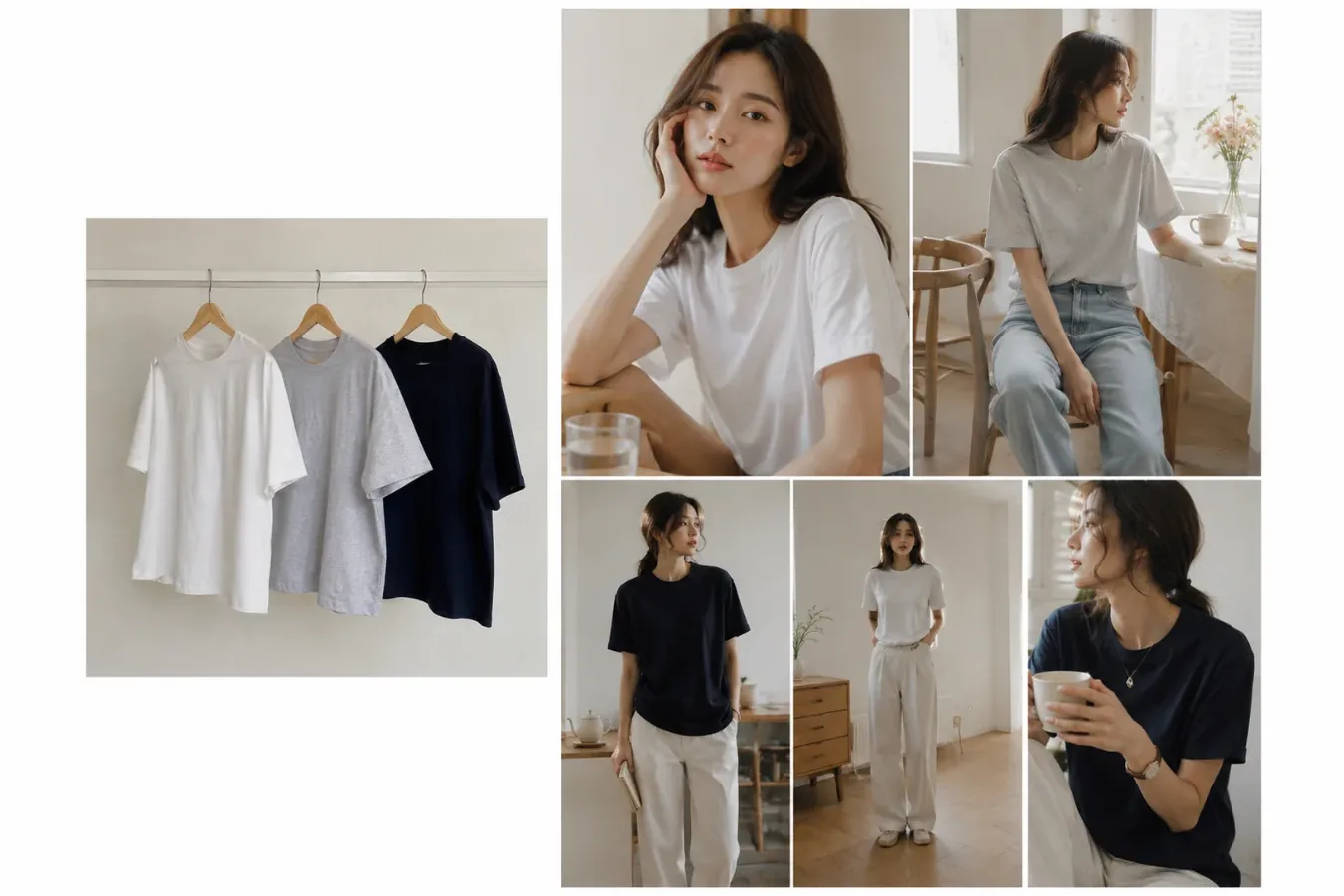
Tucked-in shots look good but hide the body length. In the sample above, the white and gray T-shirts both came out tucked into trousers. If you use shots like that, keep at least one untucked shot as well.
3. Count and position of details
Count buttons, pockets and their placement, zipper direction, seams and slits. If a buyer opens the box and the button count is different, there is no good explanation to give. If the back has details, check the back view too.
4. Lettering, logos and patterns
Check every letter of a logo or slogan, one by one. For checks and stripes, compare spacing, width and direction. For prints, compare size and placement. A chest print that slides off center or changes size is a different product from the one you are selling.
5. How the fabric reads
Look at sheen, sheerness and thickness. A sheer blouse that looks opaque in the photo, or a fine knit that looks chunky, will feel wrong to the buyer the moment they open it.
When the material is the reason someone buys the piece, such as a knit stitch, embroidery or a see-through fabric, a real photo works better than an AI one. We made the same point in making on-model photos for wholesale without a shoot.
6. Everything else the AI added
The AI doesn't only draw your garment. It also draws trousers, shoes, a necklace, a watch. In the sample above, only T-shirts went in, yet every shot has trousers, and the navy shot has a necklace and a watch.
Items you don't sell can be mistaken for part of the product. Put a line near the photos such as "Styling items and bottoms not included," and drop any shot where something you don't sell steals the attention.
An AI model has no height and no size
Product pages usually list the model's details, something like "Model is 168 cm and wears a size M." Buyers use that one line to judge their own size.
The model in an AI try-on photo has never worn your garment. An AI-generated model has no height at all, and even if you started from a photo of a real person, that person never tried on that size. Listing a height and a worn size would be stating something that didn't happen.
Write these instead:
If you use a photo of a staff member or a friend as the model, get their consent first for their face to appear in commercial images.
Photograph garments so checking is easy
The garment photo you upload is both the raw material for the AI and the reference you will check against later. Shoot it well once and you get better results and faster checks.
Use these garment photos on the product page as well. Let the AI photo show how the piece looks when worn, let the real photos carry the color and details, and the buyer can compare the two.
Save the garment photos and the AI photos for each style in one folder. WEAROOM deletes generated images after 30 days, so download the ones you use as you go. If a buyer later says the item doesn't match, you can see exactly what went in and what came out.
Should you label the photos as AI-made?
We recommend it. Here is where things stand in Korea.
Korea's AI Basic Act, in force since January 22, 2026, requires that content made with generative AI be marked as AI-generated. The duty sits with the businesses that provide generative AI or services built on it, and the government has said fines will be deferred for at least a year.
The government has also said it wants people who make and post AI-generated photos and videos to label them, as part of a December 2025 plan against false and exaggerated advertising, and bills that would put a labeling duty on people who post such content have been introduced in the National Assembly. Whether or not the duty already applies to you as a seller, the direction is clear.
A label is not a defense, though. If the photo shows a different button count than the real garment, it is still a mismatched product, label or no label. The label tells buyers where to set their expectations. The six checks above are what make the photo match.
The best spot is right below the first on-model photo. Something like this works:
"Model images were created with AI. Please go by the product photos below for color and details, and by the measurement chart for size. Styling items and bottoms not included."
If the marketplace you sell on has its own rules for product images, check those too.
A final check before publishing
If anything fails, remake the shot or leave it out. Check whether your tool charges credits for remakes. WEAROOM does, so when you plan a month of credits, leave room for the shots you will redo.
If you make them with WEAROOM
WEAROOM is the AI try-on service I built and run. New accounts get 10 free images, so you can make a few shots of one new style and run the six checks above before deciding anything.
AI try-on photos let you list a new style without waiting for a shoot. Just don't skip the one step that keeps them honest: holding each photo up against the real garment before it goes live.
Services by Botonglee